
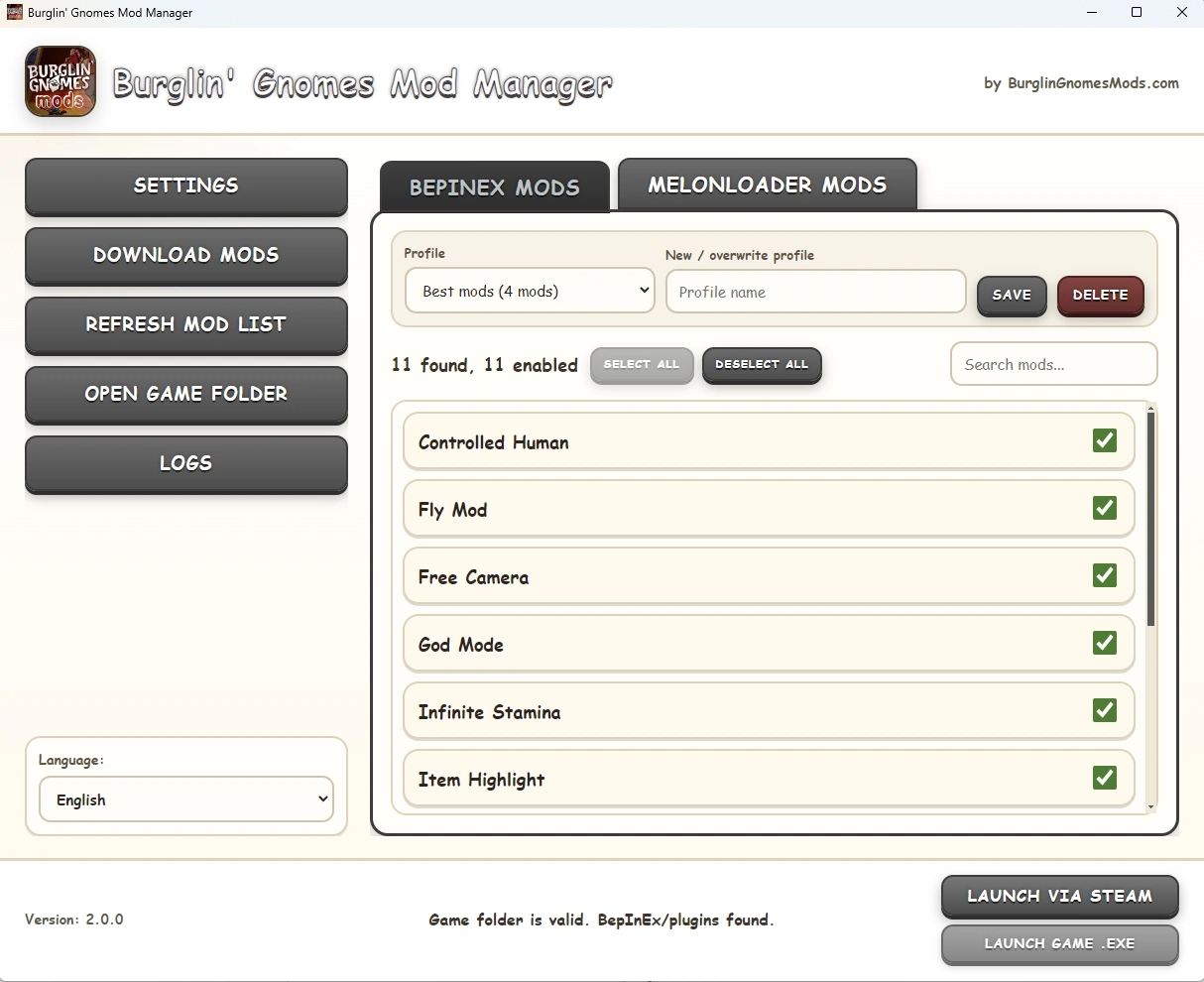
Burglin’ Gnomes Mod Manager
Burglin’ Gnomes Mod Manager is a lightweight tool for managing BepInEx and MelonLoader mods for Burglin’ Gnomes. It lets you easily enable, disable, organize, and launch the game with different mod setups without manually renaming or deleting files in the game folder.
What’s New in Mod Manager Version 2
Version 2 adds support for MelonLoader mods and introduces a safe loader-switching system.
Burglin’ Gnomes Mod Manager can now manage both BepInEx and MelonLoader mods, but only one mod loader is active at a time. This avoids conflicts between BepInEx and MelonLoader while still allowing players to keep both loaders installed and switch between them from the manager.
Features
- Automatic game detection. Detects your Burglin’ Gnomes Steam installation automatically.
- Manual game folder selection. If the game is not detected automatically, you can choose the game folder manually.
- BepInEx mod management. Scans BepInEx/plugins and displays installed mods.
- MelonLoader mod management. Manage MelonLoader mods from the Mods folder.
- Safe mod loader switching. Switch between BepInEx and MelonLoader directly from the manager. Only one loader is active at a time.
- Separate tabs for each loader. Use the BepInEx Mods tab for BepInEx mods and the MelonLoader Mods tab for MelonLoader mods.
- Enable or disable mods easily. Toggle mods on or off directly from the manager.
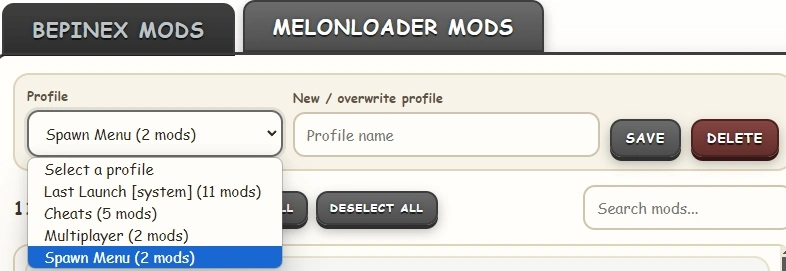
- Separate profiles. Create different mod profiles for different mod loaders and switch between them quickly:
- Launch via Steam or via .exe. Start the game through Steam or game’s .exe directly from the manager.
- Automatic MelonLoader Mods folder creation. If MelonLoader is installed but the Mods folder is missing, the manager can create it automatically.
- Built-in logs viewer for both loaders. View BepInEx logs or MelonLoader logs depending on the currently selected loader tab.
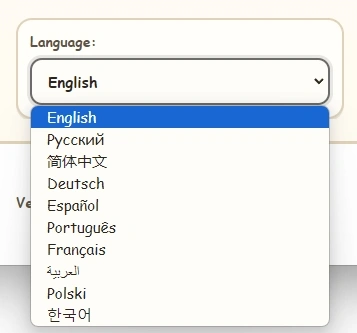
- Supports multiple interface languages:
- English (English)
- Russian (Русский)
- Simplified Chinese (简体中文)
- German (Deutsch)
- Spanish (Español)
- Portuguese (Português)
- French (Français)
- Arabic (العربية)
- Polish (Polski)
- Korean (한국어)
- System language detection. The manager automatically uses the first supported language from your Windows preferred languages list, unless you manually select another language:
- Other features:
- Last Launch profile. Automatically created or updated when you close the Mod Manager. It saves the mods that were enabled the last time you launched the game.
- Select All / Disable All. Quickly enable or disable all detected mods.
- Close after launch option. Optional setting to close the manager automatically after launching the game.
- If BepInEx or MelonLoader is not detected, the manager provides a direct download button.
- Open game folder. Quickly open the game installation folder.
- Download Mods button. Opens burglingnomesmods.com in your browser.
Requirements
- Windows 10 or newer
- Steam (to use Launch via Steam option)
- Burglin’ Gnomes full version
- BepInEx installed for the game
- BepInEx mods placed in BepInEx/plugins
- MelonLoader installed for MelonLoader mods
Important Notes
This manager does install BepInEx or MelonLoader automatically. Please download and install the correct BepInEx version or MelonLoader mod loader for Burglin’ Gnomes before using mods. Or use the built-in download buttons in the mod manager to open the appropriate download page.
It also does not download mods directly.
All settings stored in %APPDATA%/Burglin Gnomes Mod Manager.
How It Works
The mod manager supports two mod loaders:
- BepInEx
- MelonLoader
BepInEx mods are detected in BepInEx/plugins. MelonLoader mods are detected in Mods folder.
Each .dll file is treated as one mod. When a mod is disabled, the manager safely renames the file so the active loader will not load it. Re-enabling the mod restores the original .dll file.
BepInEx and MelonLoader cannot be active at the same time. When you switch between the BepInEx Mods and MelonLoader Mods tabs, the manager activates the selected loader and disables the other one.
Profiles are stored separately for each loader. A BepInEx profile will only affect BepInEx mods, and a MelonLoader profile will only affect MelonLoader mods.
How to Use Mod Manager
- Install BepInEx and/or MelonLoader for Burglin’ Gnomes. DownloadBepInEx from here if you still don’t have it. MelonLoader is available here. Pick the archive version (MelonLoader x64 0.7.3.zip).
- Run the game once so BepInEx can create its folders. Or simply create plugins folder in Burglin’ Gnomes/BepInEx.
- Place .dll files into BepInEx/plugins for BepInEx mods.
- Place MelonLoader mod .dll files into Mods folder.
- Download Burglin’ Gnomes Mod Manager.
- Unzip it anywhere and launch Burglin Gnomes Mod Manager.exe. The game’s folder will be found automatically.
- Enable the mods you want.
- Create a profile if desired.
- Launch the game through Steam.
Troubleshooting
- If BepInEx mods do not load, make sure the BepInEx Mods tab is selected before launching the game.
- If MelonLoader mods do not load, make sure the MelonLoader Mods tab is selected before launching the game.
- If the manager cannot find the game automatically, open Settings and use Choose folder manually.
- If BepInEx mods are not loading, check the built-in Logs window for BepInEx errors.
- If MelonLoader mods are not loading, check the built-in Logs window for MelonLoader errors.
- If the manager reports that winhttp.dll or version.dll is missing, use the download button or follow the warning message shown in the manager.
- For more information on how to install mods for Burglin’ Gnomes, visit this page.
Changelog
- 2.0.0: Added MelonLoader support
- 1.0.1: Improved profile management
If you encounter any bug, or have a suggestion, drop a comment below.