How to Install Mods for Burglin’ Gnomes
This guide explains how to install mods for the Burglin’ Gnomes game.
NEW: Mod Manager V2 now supports both loaders installed. Download it here.
Installing BepInEx
BepInEx is required to enable mods in Burglin’ Gnomes.
- Download BepInEx 5 Stable (download link).
- Open the .zip and drag all contents directly into the Burglin’ Gnomes folder. If you don’t know where it is located:
- In Steam: Right-click the game > Manage > Browse local files.
- Launch Burglin’ Gnomes. A console window should appear alongside the game:
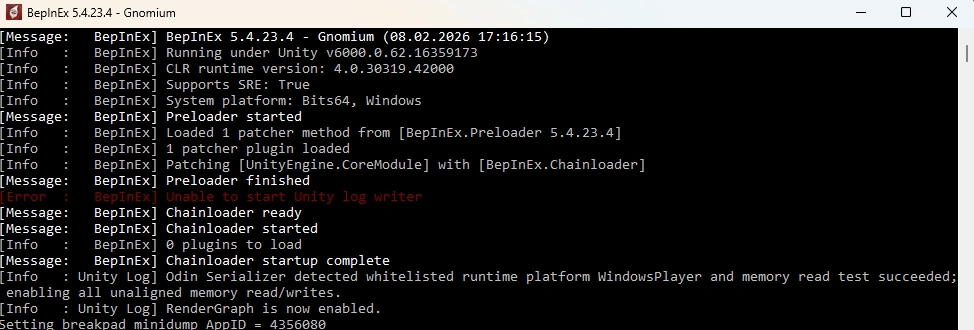
- Wait until the game reaches the main menu, then close the game.
- Congratulations, BepInEx has now generated the plugins and config folders you need.
Installing MelonLoader
If you have mods that use MelonLoader, you must install it too. Go the the MelonLoader download page, download archive and unzip it to the game’s folder.
How to Install Burglin’ Gnomes Mods
Mods for Burglin’ Gnomes are always .dll files (sometimes mods features extra files like music, sounds, skins, etc.).
- Download a mod you want to install.
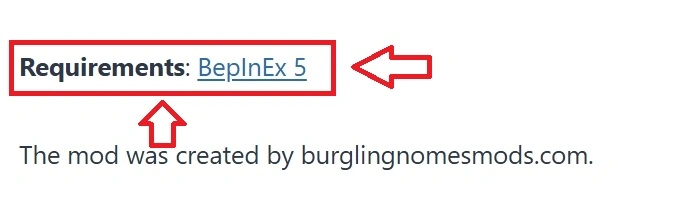
- Check dependencies: some mods require other mods to work. Always check the “Requirements” section:
- Move the mod’s .dll file:
- into Burglin’ Gnomes/BepInEx/plugins if the mod is made for BepInEx mod loader.
- into Burglin’ Gnomes/Mods if the mod is made for MelonLoader mod loader.
- If the mod comes with a folder (e.g., for assets) or extra file(s), move the entire folder/extra file(s) into plugins or Mods folder.
- After running the game with a mod once, a configuration file (.cfg) will appear in BepInEx/config. You can open this with Notepad to change mod settings (like hotkeys). Alternatively, use Mod Config Manager – it let’s you edit mod settings directly in the game’s menu.
BepInEx Not Working [Troubleshooting]
In 99.99% of cases, BepInEx does not work because MelonLoader is installed and active. Use Mod Manager to manage both mod loaders.
Special Cases: Linux & Steam Deck
If you are on Linux or a Steam Deck, the winhttp.dll won’t load automatically because of Proton. You must tell Steam to use it.
- Right-click the Burglin’ Gnomes in Steam and select Properties.
- In Launch Options, paste the following: WINEDLLOVERRIDES=”winhttp=n,b” %command%
This forces the game to use the “native” (modded) winhttp.dll instead of the built-in Windows version.
How to Uninstall any Mod
Simply delete the .dll file (and all associated files/folders) from the plugins folder.
How to Deactivate any Mod
Use Burglin’ Gnomes Mod Manager to activate/deactivate mods.
How to Uninstall BepInEx
To uninstall BepInEx mod loader, delete the following folders and files in the Burglin’ Gnomes game’s folder:
Folder: BepInEx
Files:
- .doorstop_version
- doorstop_config
- winhttp.dll
This will completely remove any trace of the mod loader from the game. If you want to deactivate BepInEx, rename winhttp.dll file extension (make it winhttp.old or whatever).
How to Uninstall MelonLoader
Option 1: Use the installer. Run MelonLoader.Installer.exe and select Uninstall.
Option 2: Remove it manually. Delete the following folders (located in Burglin’ Gnomes root folder): MelonLoader, userdata and mods. Before deleting the mods folder, you may want to archive it as a backup. Then delete the file version.dll.
To deactivate MelonLoader, rename version.dll file extension.