Mod Config Manager
A universal in-game configuration UI for Burglin’ Gnomes mods.
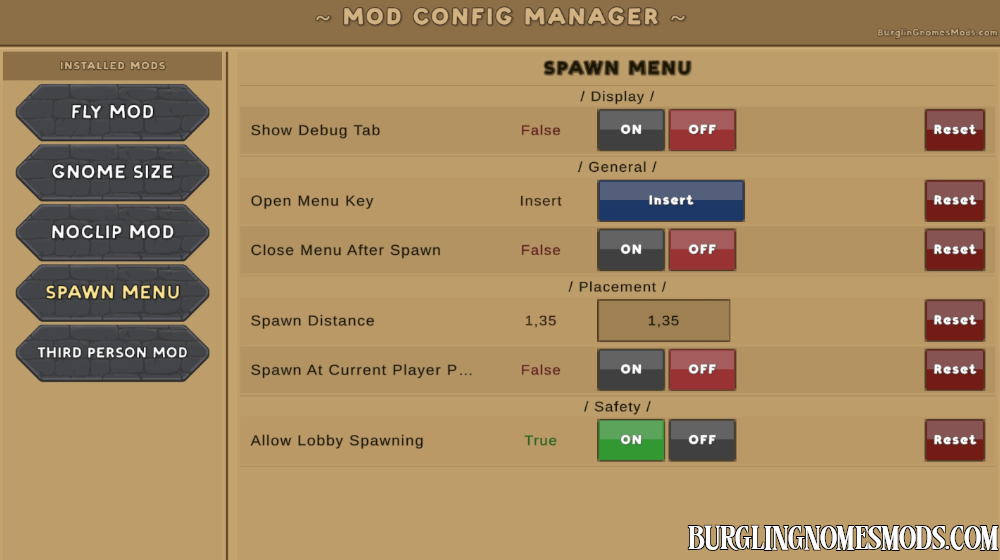
Tired of editing .cfg files manually every time you want to tweak a mod? Mod Config Manager adds a clean, fully in-game settings panel that lets you configure all your installed mods without ever leaving the game.
Mod Config Manager Features
- Universal compatibility: automatically detects and lists all installed BepInEx mods that expose configuration entries. No per-mod integration required.

- In-game UI: accessible directly from the main menu via the MOD CONFIG button. No need to alt-tab or restart.
- Full config type support: booleans (ON/OFF toggle), numbers (inline input field), strings (text input), enums and value lists (cycle button), and keybinds (click-to-rebind).
- Keybind rebinding: click any keybind field and press the desired key. Supports modifier keys (Ctrl, Shift, Alt). Cancel with Escape.
- Change numbers: modify the mod’s numeric values. For decimal numbers, use a comma (e.g., 0,5).
- Supports descriptions: tooltips appear when you hover over values, explaining what each setting does.
- Pending changes system: edits are staged and only written to disk when you hit Apply & Exit, so you can freely tweak without accidentally saving.
- Per-mod reset (Reset All button): reset all settings of the currently selected mod to their default values with one click.
- Per-value reset: use the Reset button next to each setting to restore it to its default value.
- Non-destructive exit: closing the window without applying discards all unsaved changes.
- Overlay priority: the UI renders on top of all other game elements, ensuring nothing gets hidden behind menus or HUD.
How to use
- Launch the game.
- In the main menu click the MOD MENU button.
- Select a mod from the left panel.
- Edit settings on the right panel.
- Click Apply & Exit to save and close, or Exit to discard changes.
Instructions For Modders
If you are not planning to mod the game, you can skip this section and proceed directly to the download.
Mod Config Manager automatically detects any loaded BepInEx mod that has a ConfigFile with at least one entry. No registration or special setup is required. As long as your mod uses the standard BepInEx configuration API, it will appear in the list automatically.
Basic Setup
Declare your ConfigFile entries in your plugin’s Awake() using Config.Bind. The mod name shown in the UI is taken from the [BepInPlugin] attribute’s Name field.
[BepInPlugin("com.yourname.yourmod", "Your Mod Name", "1.0.0")]
public class YourMod : BaseUnityPlugin
{
    private void Awake()
    {
        var myBool   = Config.Bind("General", "Enable Feature", true,
                           "Enables or disables the feature.");

        var myFloat  = Config.Bind("General", "Speed", 5.0f,
                           new ConfigDescription("Movement speed.",
                               new AcceptableValueRange<float>(1f, 20f)));

        var myEnum   = Config.Bind("General", "Mode", MyMode.Normal,
                           "Select operating mode.");

        var myKey    = Config.Bind("Controls", "Action Key", KeyCode.F,
                           "Key to trigger the action.");
    }
}
Supported Value Types and How They Display
| bool | ON / OFF buttons | Highlighted based on current value |
| int, float, double, long, byte, short | Number input field | Arrow buttons appear if AcceptableValueRange is set |
| string | Text input field | Free-form text entry |
| enum | Cycle button | Cycles through all enum values |
| KeyCode | Keybind button | Click, then press a key to assign |
| KeyboardShortcut | Keybind button | Same as KeyCode |
AcceptableValues: Dropdowns and Ranges
Using AcceptableValues changes the control type and restricts input:
Dropdown (cycle button)
Applies to string, int, or float with a fixed list of options:
Config.Bind("Section", "Difficulty", "Normal",
    new ConfigDescription("Game difficulty.",
        new AcceptableValueList<string>("Easy", "Normal", "Hard")));
Numeric range with arrows
Applies to numeric types. It shows a text input with a validated range:
Config.Bind("Section", "Volume", 80,
    new ConfigDescription("Sound volume (0–100).",
        new AcceptableValueRange<int>(0, 100)));
Sections
Entries are grouped visually by section name. Use clear, descriptive section names: they appear as headers in the right panel.
Config.Bind("Audio",    "Music Volume",  80,  "...");
Config.Bind("Audio",    "SFX Volume",    100, "...");
Config.Bind("Graphics", "Shadow Quality", 2,  "...");
Descriptions and Tooltips
The description string is shown as a tooltip when the player hovers over a config row. Write it as a plain sentence explaining what the value does.
Config.Bind("General", "Spawn Rate", 1.5f,
    new ConfigDescription(
        "Multiplier for enemy spawn rate. Higher values increase difficulty.",
        new AcceptableValueRange<float>(0.1f, 5.0f)));
Keep descriptions concise, one to two sentences is ideal.
Keybinds
Both KeyCode and KeyboardShortcut are supported. The player clicks the button and presses the desired key to assign it. Escape cancels the assignment.
// Single key
var openKey = Config.Bind("Controls", "Open Menu", KeyCode.Tab,
                  "Key to open the mod menu.");

// Key combination (BepInEx shortcut)
var shortcut = Config.Bind("Controls", "Toggle",
                  new KeyboardShortcut(KeyCode.F1),
                  "Shortcut to toggle the feature.");
Reading Config Values at Runtime
Config values update as soon as the player clicks Apply & Exit. The underlying ConfigEntry<T>.Value property always reflects the current saved value. To react to changes immediately, subscribe to the SettingChanged event:
mySpeed.SettingChanged += (sender, args) =>
{
    ApplyNewSpeed(mySpeed.Value);
};
What Is Not Supported
- Custom editor types: there is no API for registering a custom UI control for a non-standard type. Unsupported types fall back to a plain string input.
- Read-only entries: all displayed entries are editable. If you need a read-only value, do not bind it to the config file, or handle it separately.
- Nested config files: only plugin.Config (the main ConfigFile) is read. Additional ConfigFile instances created manually are not detected automatically.
Version 1.1.3 change: Fixed/improved UI.
Version 1.1.2 change: Fixed bug with the button name.
Version 1.1.1 change: Fixed bug with scrolling.
Version 1.1.0 changelog:
- Redesigned UI to match the game’s visual style – window background now uses a parchment theme
- Mod list buttons now use the same stone tablet style as the main menu buttons
- All text now uses the game’s font
- Fixed ESC key not closing the window when a mod was selected in the list
- Fixed the mod affecting font size of main menu buttons
Version 1.0.2 change: Updated the look of the Mod Config button and integrated it into the game menu.
Requirements: BepInEx 5
Mod Config Manager was created by burglingnomesmods.com.
How to Install
- Make sure you have BepInEx 5 installed.
- Download Mod Config Manager and unzip the archive to Burglin’ Gnomes\BepInEx\plugins.
Detailed guide: How to install mods for Burglin’ Gnomes.